
Describes how to fax a TransactionDesk Edition document to a specific recipient.
https://lonewolf.my.site.com/s/article/TDE-Fax-a-Document-1
Overview
You can use TransactionDesk to fax a document to a specific recipient. For example, if you are working with an outside broker on the other side of town that only receives deal documents via fax, you can fax them the required documents for them to sign and send back.
Steps
- Locate the document you need to fax. You can fax documents contained in the Inbox, My, Shared, and Transaction folders in Documents. You can fax documents from a transaction.
- Do one of the following:
- If you need to fax a single document, click the More Options menu
 , and then click Send. In the Send window, click Fax.
 - If you need to fax multiple documents, check the documents you need to fax.
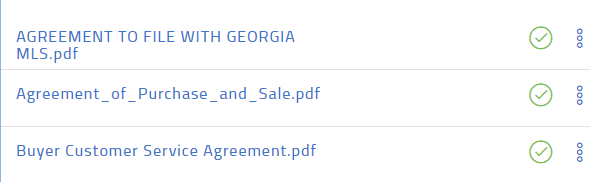
Click the basket , then click send via fax
  .
.
The Fax window opens.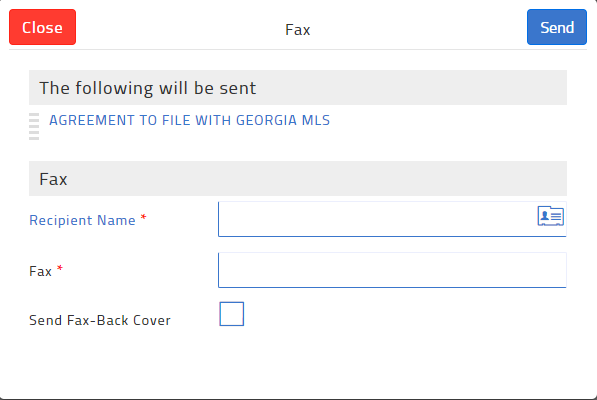
- If you need to fax a single document, click the More Options menu
- Use the Recipient Name field to enter the name of the fax recipient.
- Type the fax number in the Fax field.
Note: Do not include the initial 1 in the number. - If you need to include a fax back cover sheet, check Include Fax-Back Cover Sheet, and type a fax header and body message in the Header and Message fields.
- If you require a notification when the fax is completed, check Email me when the fax is returned.
- If you need to include copies of any returned documents in the returned fax notification email, check Include returned documents.
- When you are finished adding your fax information, click Send.
Your fax is sent to the specified number.
Category: Training